Tutarium guide
Create campaign graphics in Marketing Studio
Turn a saved book cover and metadata into polished square, landscape, and story graphics, then pair the image with a tracked campaign link.
Why this matters
Campaign graphics work harder when the visual, message, and destination belong to the same promotion. Marketing Studio keeps those pieces together, so you can create a polished image and share it with a clean link whose store clicks you can measure.
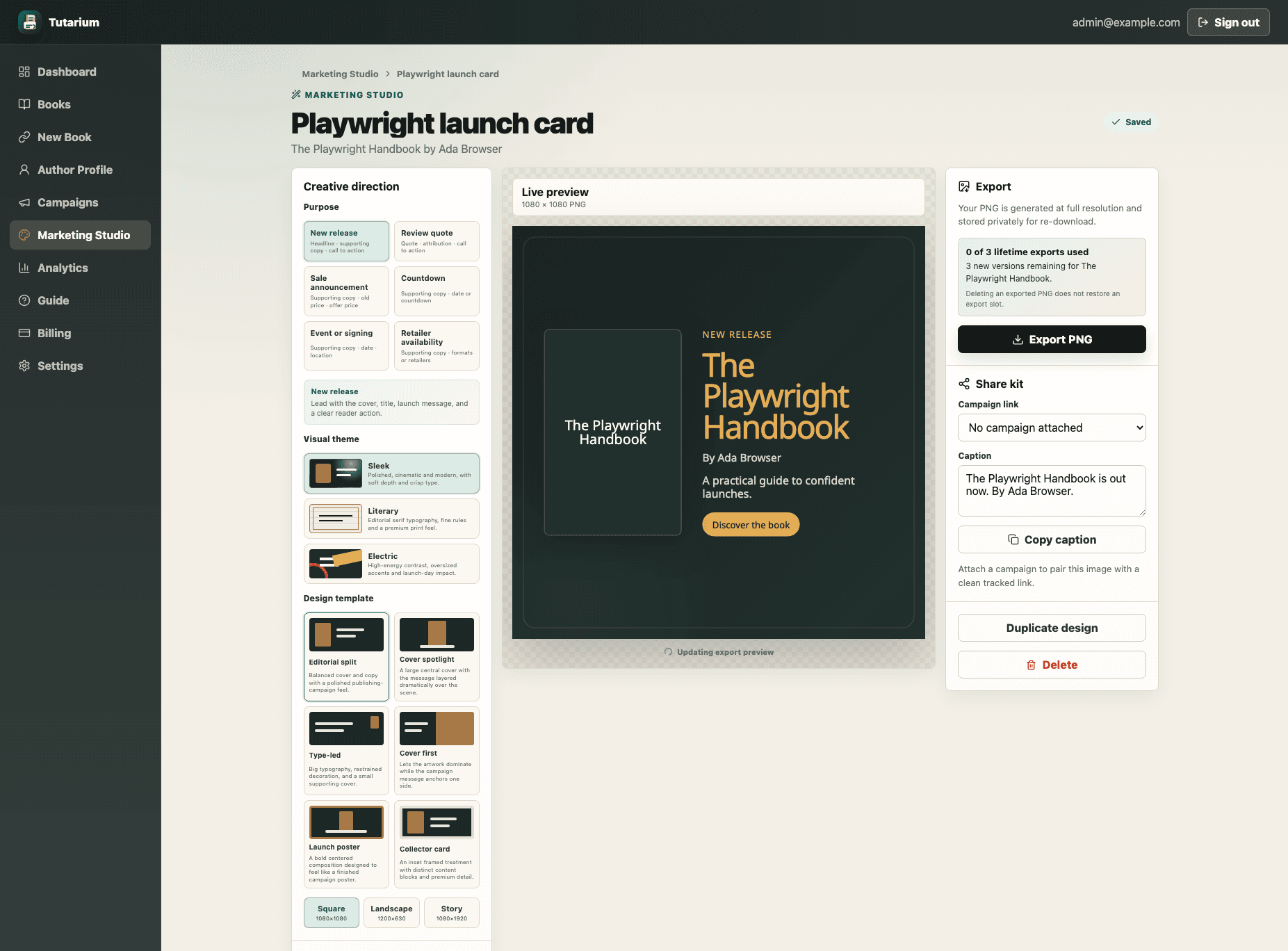
Choose the book you want to promote
Open Marketing Studio and select a saved book. Tutarium starts the design with its cover, title, author, and available marketing copy.
Choose the campaign purpose and visual direction
Pick a new release, review quote, sale, countdown, event, or retailer graphic. Then choose a theme and one of six templates built for book-focused promotion.
Shape the message
Edit the eyebrow, headline, supporting copy, call to action, and purpose-specific details such as a quote, price, date, location, or retailer list.
Choose colours and format
Use palettes derived from the cover or set guided custom colours. Tutarium checks text contrast while you switch between square, landscape, and story formats.
Export and re-download the PNG
Generate the full-resolution PNG and download it immediately or later from previous exports. Free accounts can create three lifetime unique versions per book; deleting a PNG does not restore a slot. Pro exports are unlimited.